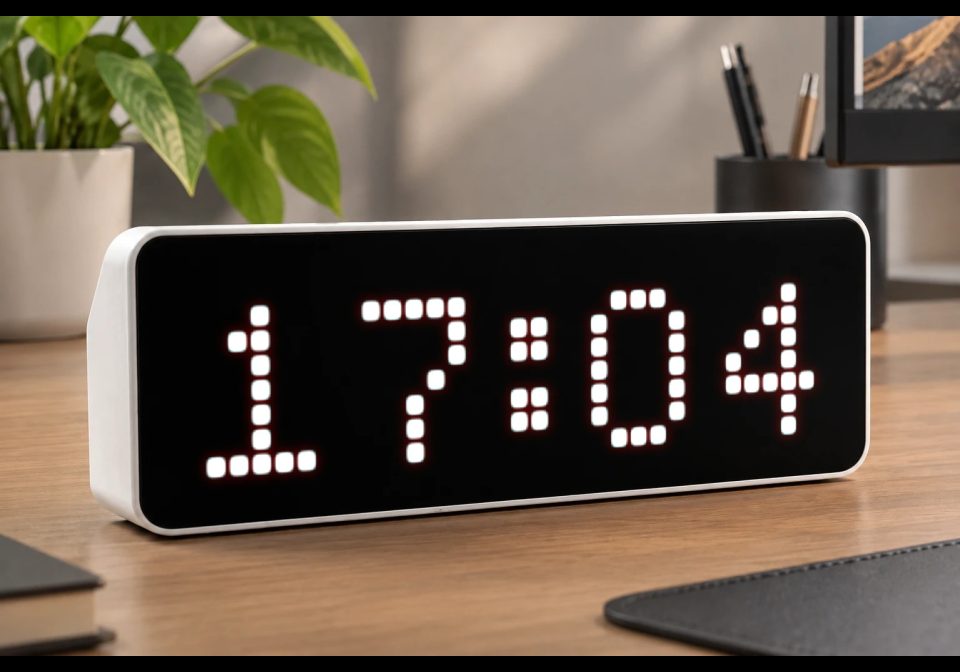
Clock_M - Customizable Pixel Clock
A medium pixel-style HH clock for AWTRIX 3 with customizable color and blinking colon.
| System | AWTRIX NG Scripts |
|---|---|
| Firmware | AWTRIX NG |
| Topic | Miscellaneous |
| Built by | Avemer |
| File | skzUJCXa4l7g.ax · 7.2 KB |
| Icons | — |
| Published | 9 Aug 2026 · updated 19 Aug 2026 |
| Downloads | 39 |
Inspired by the work of RobG.
- This script uses ideas and implementation approaches from RobG's original nightmode clock.
Update 1.3 19 AUG
- Added configurable 12/24-hour time format.
- Added optional AM/PM indicator for 12-hour format.
- Added configurable Night Mode with custom start and end times.
- Added separate day/night clock colors.
- Added separate day/night brightness settings.
- Added separate day/night automatic brightness settings.
- Added option to disable app rotation during Night Mode.
- Added automatic handling of night periods that cross midnight (e.g. 23:00 → 08:00).
- Added configurable settings through the AWTRIX app configuration interface.
Changed:
- Clock settings are now can be changed in a config section.
- Night Mode now automatically switches between day and night settings without interrupting the clock.
- Night Mode remains active after midnight until the configured Night End time.
- Improved configuration handling for the clock's appearance and behavior.
Update 1.2
- Added Night Mode — automatically switches the clock to a separate night configuration during the selected time range.
- Configurable Night Schedule — set the start and end time of Night Mode using HH:MM.
- Configurable Brightness. — set brightness modes and values.
- Night Clock Color — choose a separate color for the clock during Night Mode.
- Night Rotation Control — optionally disable app rotation during Night Mode so the clock stays on screen.
- Automatic Rotation Handling — when Night Rotation is enabled, the clock is shown when Night Mode starts and normal app rotation resumes when Night Mode ends.
- Midnight-Crossing Schedule — Night Mode supports periods such as 23:00 → 08:00.
New Settings:
-
NIGHT_MODE_ENABLED =
NIGHT_MODE_ENABLED = 1— Night Mode enabled
NIGHT_MODE_ENABLED = 0— Night Mode disabled -
NIGHT_STARTNight Mode start time Format: HH:MM -
NIGHT_ENDNight Mode end time Format: HH:MM -
NIGHT_CLOCK_COLORClock color used during Night Mode Format: 0xRRGGBB -
NIGHT_ROTATION_ENABLED =
NIGHT_ROTATION_ENABLED = 1— Disable app rotation during Night Mode
Clock_M stays on screen
NIGHT_ROTATION_ENABLED = 0— Keep normal app rotation
Only the night color changes -
Brightness
If you're adding the brightness settings in this version as discussed, I'd describe them as:
NIGHT_BRIGHTNESS
Brightness used during Night Mode Range: 0–255
DAY_BRIGHTNESS
Brightness used during normal/day mode Range: 1–255
- This follows the same general AWTRIX approach of controlling custom-app display behavior through the device's settings/API.
Example configuration
NIGHT_MODE_ENABLED = 1
NIGHT_START = "23:00"
NIGHT_END = "08:00"
NIGHT_CLOCK_COLOR = 0xFF0000
NIGHT_BRIGHTNESS = 1
DAY_BRIGHTNESS = 127
NIGHT_ROTATION_ENABLED = 1
Update 1.1 The settings menu has been moved up in the code.
FEATURES
- Medium 5×7 pixel digits
- 24 HH time format
- Centered on the 32×8 AWTRIX display
- Customizable clock color
- Optional blinking colon
- Colon blinks once per second when enabled
- Designed specifically for AWTRIX 3 Berry scripting
SETTINGS
In code look for section
====== START OF USER SETTINGS ======
1. BLINK_COLON
Controls whether the : blinks.
self.BLINK_COLON = 1
1 = colon blinks once per second
0 = colon stays permanently visible
2. CLOCK_COLOR
Controls the color of the clock.
The color is specified as a hexadecimal RGB value:
self.CLOCK_COLOR = 0xFFFFFF
Examples:
0xFFFFFF # White
0xFF0000 # Red
0x00FF00 # Green
0x0000FF # Blue
0xFFFF00 # Yellow
0x00FFFF # Cyan
0xFF00FF # Magenta
You only need to change these settings; the rest of the script can remain unchanged.
Display
The clock displays the current time using large custom pixel digits:
HH:MM
The script uses the AWTRIX draw() loop, so the display updates automatically.
GENERAL
The code contains explanations if you want to change something.
The design of each digit and colon is written in the code and can be changed manually, as well as their position.
Vibecoded with ChatGPT, polished by Avemer.
And I'm a newbie, hope someone might find this script usefull!
skzUJCXa4l7g.ax
# @name Clock_M
# @desc Big pixel clock HH:MM with 12/24h format, day/night mode, brightness and rotation control
# @author Avemer
# @version 1.3

# @config blink_colon bool "Blink colon" default=true
# @config hour_format select "Hour format" default=24 options=24,12

# @config clock_color color "Day clock color" default=#FFFFFF
# @config day_brightness slider "Day brightness" default=127 min=1 max=255
# @config day_auto_brightness bool "Day auto brightness" default=false

# @config night_mode bool "Night mode" default=true
# @config night_start text "Night start" default="23:00" maxlen=5
# @config night_end text "Night end" default="08:00" maxlen=5
# @config night_color color "Night clock color" default=#FF0000
# @config night_brightness slider "Night brightness" default=1 min=0 max=255
# @config night_auto_brightness bool "Night auto brightness" default=false
# @config night_rotation bool "Disable rotation at night" default=true


class BigClock


var BLINK_COLON
var HOUR_FORMAT

var CLOCK_COLOR

var DAY_BRIGHTNESS
var DAY_AUTO_BRIGHTNESS

var NIGHT_MODE_ENABLED
var NIGHT_START
var NIGHT_END
var NIGHT_CLOCK_COLOR
var NIGHT_BRIGHTNESS
var NIGHT_AUTO_BRIGHTNESS
var NIGHT_ROTATION_ENABLED

var night_start_m
var night_end_m
var night_mode
var last_mode


def init()

self.BLINK_COLON = store.get("blink_colon")

self.HOUR_FORMAT = num(
  store.get("hour_format"),
  24
)

if self.HOUR_FORMAT != 12 && self.HOUR_FORMAT != 24
  self.HOUR_FORMAT = 24
end


self.CLOCK_COLOR = store.get("clock_color")

self.DAY_BRIGHTNESS = store.get("day_brightness")
self.DAY_AUTO_BRIGHTNESS = store.get("day_auto_brightness")


self.NIGHT_MODE_ENABLED = store.get("night_mode")
self.NIGHT_START = store.get("night_start")
self.NIGHT_END = store.get("night_end")

self.NIGHT_CLOCK_COLOR = store.get("night_color")
self.NIGHT_BRIGHTNESS = store.get("night_brightness")
self.NIGHT_AUTO_BRIGHTNESS = store.get("night_auto_brightness")
self.NIGHT_ROTATION_ENABLED = store.get("night_rotation")


self.night_start_m = self.parse_min(
  self.NIGHT_START,
  23 * 60
)

self.night_end_m = self.parse_min(
  self.NIGHT_END,
  8 * 60
)


self.night_mode = false
self.last_mode = -1

end


def parse_min(txt, dflt)

var m = re.search(
  "(\\d\\d?):(\\d\\d)",
  str(txt)
)

if m == nil
  return dflt
end

var v = num(m[1], 0) * 60 + num(m[2], 0)

if v >= 0 && v < 1440
  return v
end

return dflt

end


def update_night_mode()

var night = false


if self.NIGHT_MODE_ENABLED == true

  var hr = num(hour(), -1)
  var mi = num(minute(), -1)

  if hr < 0 || mi < 0
    return
  end

  var now = hr * 60 + mi


  if self.night_start_m == self.night_end_m

    night = false


  elif self.night_start_m < self.night_end_m

    if now >= self.night_start_m &&
       now < self.night_end_m

      night = true

    end


  else

    if now >= self.night_start_m ||
       now < self.night_end_m

      night = true

    end

  end

end


var new_mode = 0

if night == true
  new_mode = 1
end


if new_mode != self.last_mode

  self.last_mode = new_mode
  self.night_mode = night


  if self.night_mode == true

    settings.set(
      "brightness",
      self.NIGHT_BRIGHTNESS
    )

    settings.set(
      "autoBrightness",
      self.NIGHT_AUTO_BRIGHTNESS
    )


    if self.NIGHT_ROTATION_ENABLED == true

      rotation.show()
      rotation.pause()

    end


  else

    settings.set(
      "brightness",
      self.DAY_BRIGHTNESS
    )

    settings.set(
      "autoBrightness",
      self.DAY_AUTO_BRIGHTNESS
    )


    if self.NIGHT_ROTATION_ENABLED == true

      rotation.resume()

    end

  end


else

  self.night_mode = night

end


if self.night_mode == true

  if self.NIGHT_ROTATION_ENABLED == true
    rotation.pause()
  end

end

end


def loop()

self.update_night_mode()

end


def p(x, y)

var c = self.CLOCK_COLOR

if self.night_mode == true
  c = self.NIGHT_CLOCK_COLOR
end

pixel(
  x,
  y + 1,
  c
)

end


def digit(x, n)


if n == 0

self.p(x+1,0)
self.p(x+2,0)
self.p(x+3,0)

self.p(x,1)
self.p(x+4,1)

self.p(x,2)
self.p(x+4,2)

self.p(x,3)
self.p(x+4,3)

self.p(x,4)
self.p(x+4,4)

self.p(x,5)
self.p(x+4,5)

self.p(x+1,6)
self.p(x+2,6)
self.p(x+3,6)


elif n == 1

self.p(x+1,1)

self.p(x+2,0)
self.p(x+2,1)
self.p(x+2,2)
self.p(x+2,3)
self.p(x+2,4)
self.p(x+2,5)

self.p(x,6)
self.p(x+1,6)
self.p(x+2,6)
self.p(x+3,6)
self.p(x+4,6)


elif n == 2

self.p(x,1)
self.p(x+1,0)
self.p(x+2,0)
self.p(x+3,0)

self.p(x+4,1)
self.p(x+4,2)

self.p(x+1,3)
self.p(x+2,3)
self.p(x+3,3)

self.p(x,4)
self.p(x,5)

self.p(x,6)
self.p(x+1,6)
self.p(x+2,6)
self.p(x+3,6)
self.p(x+4,6)


elif n == 3

self.p(x,1)
self.p(x+1,0)
self.p(x+2,0)
self.p(x+3,0)

self.p(x+4,1)
self.p(x+4,2)

self.p(x+1,3)
self.p(x+2,3)
self.p(x+3,3)

self.p(x+4,4)
self.p(x+4,5)

self.p(x,5)
self.p(x+1,6)
self.p(x+2,6)
self.p(x+3,6)


elif n == 4

self.p(x,3)
self.p(x+1,2)
self.p(x+2,1)
self.p(x+3,0)

self.p(x,4)
self.p(x+1,4)
self.p(x+2,4)
self.p(x+3,4)
self.p(x+4,4)

self.p(x+3,1)
self.p(x+3,2)
self.p(x+3,3)
self.p(x+3,4)
self.p(x+3,5)
self.p(x+3,6)


elif n == 5

self.p(x,0)
self.p(x+1,0)
self.p(x+2,0)
self.p(x+3,0)
self.p(x+4,0)

self.p(x,1)
self.p(x,2)

self.p(x+1,3)
self.p(x+2,3)
self.p(x+3,3)

self.p(x+4,4)
self.p(x+4,5)

self.p(x,6)
self.p(x+1,6)
self.p(x+2,6)
self.p(x+3,6)


elif n == 6

self.p(x+1,0)
self.p(x+2,0)
self.p(x+3,0)
self.p(x+4,1)

self.p(x,1)
self.p(x,2)
self.p(x,3)
self.p(x,4)
self.p(x,5)

self.p(x+1,3)
self.p(x+2,3)
self.p(x+3,3)

self.p(x+4,4)
self.p(x+4,5)

self.p(x+1,6)
self.p(x+2,6)
self.p(x+3,6)


elif n == 7

self.p(x,0)
self.p(x+1,0)
self.p(x+2,0)
self.p(x+3,0)
self.p(x+4,0)

self.p(x+4,1)
self.p(x+4,2)
self.p(x+3,3)

self.p(x+2,4)
self.p(x+2,5)
self.p(x+2,6)


elif n == 8

self.p(x+1,0)
self.p(x+2,0)
self.p(x+3,0)

self.p(x,1)
self.p(x+4,1)

self.p(x,2)
self.p(x+4,2)

self.p(x+1,3)
self.p(x+2,3)
self.p(x+3,3)

self.p(x,4)
self.p(x+4,4)

self.p(x,5)
self.p(x+4,5)

self.p(x+1,6)
self.p(x+2,6)
self.p(x+3,6)


elif n == 9

self.p(x+1,0)
self.p(x+2,0)
self.p(x+3,0)

self.p(x,1)
self.p(x+4,1)

self.p(x,2)
self.p(x+4,2)

self.p(x+1,3)
self.p(x+2,3)
self.p(x+3,3)

self.p(x+4,4)
self.p(x+4,5)

self.p(x,5)
self.p(x+1,6)
self.p(x+2,6)
self.p(x+3,6)

end

end


def colon(x)

var show = true


if self.BLINK_COLON == true

  if second() % 2 == 1
    show = false
  end

end


if show == true

self.p(x,1)
self.p(x+1,1)
self.p(x,2)
self.p(x+1,2)

self.p(x,4)
self.p(x+1,4)
self.p(x,5)
self.p(x+1,5)

end

end


def draw()

clear()

var h = num(hour(), 0)
var m = num(minute(), 0)


if self.HOUR_FORMAT == 12

  h = h % 12

  if h == 0
    h = 12
  end

end


var h1 = int(h / 10)
var h2 = h % 10

var m1 = int(m / 10)
var m2 = m % 10


self.digit(1, h1)
self.digit(8, h2)

self.colon(15)

self.digit(19, m1)
self.digit(26, m2)

end


def on_button(btn)
end

end


return BigClock()
Install it on your AWTRIX NG
Your browser writes the script straight to the device on your network. It joins the app rotation right away.
Some browsers refuse to talk to a device on your network from a public page. Download the flow and paste it into the Scripts tab of your device, or install it from a terminal:
More flows for AWTRIX NG Scripts or Miscellaneous
Something wrong with this flow? Report it.